Everything it does, step by step.
Start at the top for your first show. Each part builds on the last, so read only as far as your show needs.
Part one · Basics
How it works
Show Caller AI is a cue list that talks. Each row is a cue: a timecode and a line of text. When the show clock reaches a cue's timecode, the app speaks that line out loud through the audio output you choose, and can send OSC, MIDI or Art-Net at the same moment.
The voice is generated on your computer, ahead of time. Nothing is sent to the internet, and a show runs with no network at all.
Three ideas cover almost everything:
- Cues say a line at a timecode.
- The clock decides what time it is: a clock that rolls from zero, the time of day, or timecode from another system.
- Count-in blocks say things before cues ("Standby lights", "4, 3, 2, 1") without typing them for every cue.
The main window
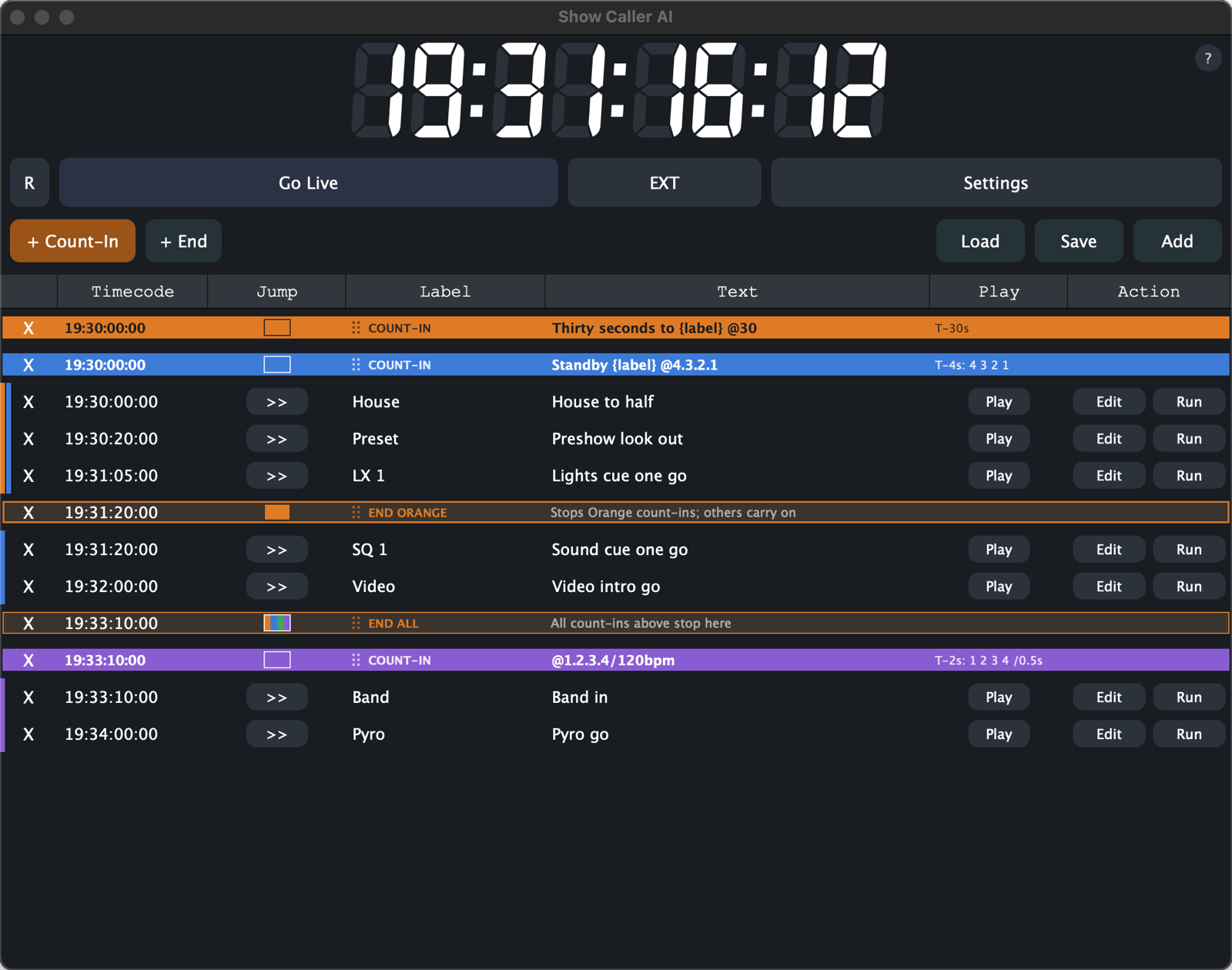
Clock
The large readout shows the show clock as HH:MM:SS:FF (hours, minutes, seconds, frames). The app counts 30 frames per second. The small round ? in the top-right corner opens the count-in syntax card.
Transport row
- R
- Resets the clock to 00:00:00:00. Only in the Roll clock, with EXT off. Keyboard: R.
- Go Live
- Arms the show. While live the button reads Stop and turns red, and cues speak when they're reached. Keyboard: Space.
- EXT
- Follows external timecode (LTC, MIDI timecode or a CLX leader) instead of the internal clock. Lit yellow when on.
- Zones
- Opens the Zones window, for sending different groups to different outputs.
- Settings
- Opens Settings: clock, audio, voices, CLX and the audio device.
Edit row
- + Count-In
- Adds a count-in block above the row you last touched.
- + End
- Adds an End block, which stops count-ins above it from carrying on.
- Load
- Opens a show (
.ods) or imports a spreadsheet (.csv,.txt). - Save
- Saves the show as an
.odsspreadsheet. - Add
- Adds a new cue at the clock's current time.
Hover over any control for a tooltip.
Your first show
Five minutes, start to finish:
- Pick an output. Open Settings. Under AUDIO DEVICE choose your interface, and under AUDIO set Announcements out to the channel feeding your comms or speakers. Close the window to apply.
- Add a cue. Click Add. A new row appears at the current clock time.
- Set its time. Click the Timecode cell and type
00:00:10:00, then press Return. - Type the line. Click the Text cell and type
House lights to half. The row turns orange-brown while the voice is generated, then returns to normal. That usually takes under a second. - Run it. Press R to zero the clock, then Go Live. Ten seconds later you'll hear the call. Press Stop to pause.
Nothing is spoken unless the show is live. Play and timed cues are both silent until you press Go Live, so a show can be built and edited quietly.
Working in the cue list
Columns
- X
- Deletes the row immediately. There is no undo, so save before big edits.
- Timecode
- When the cue fires, as
HH:MM:SS:FF. Minutes and seconds go to 59 and frames to 29. An invalid time is refused and the cell goes back to what it was. - Jump (>>)
- Moves the clock to this cue and fires it. See Running a show.
- Group
- Optional: a song, scene or department. Used for colours and zones.
- Label
- A short name such as
LX 4orBand. Not spoken by itself, but count-ins can say it with{label}. - Text
- Exactly what is spoken when the cue fires.
- Play
- Speaks this cue's line through its output (while live).
- Action
- Edit opens the cue's Lua action; Run runs it now. See Lua actions.
Click a cell once to edit it, and press Return or click away to commit. The list re-sorts by timecode as you edit. Columns can be resized by dragging their header edges.
Selecting rows
Click a row to select it; it gets a light outline. To deselect, click it again, press Esc, or click the empty space below the list.
Right-click menu
Right-click any row for:
- Insert Count-In Above and Insert End Above
- Group Colour (on cues), Colour (on count-ins) or Stops (on End blocks)
- Count-In Syntax…, which opens the syntax card
- Delete Cue or Delete Block
Row colours at a glance
- Orange-brown row
- The voice for this cue is still being generated. If the clock reaches it now, it stays silent.
- Tinted row
- The cue's group has a colour (Groups).
- Coloured stripes on the left
- One stripe per count-in block that calls ahead of this cue.
- Faded band
- A count-in block still generating its voice.
- Grey band, red outline
- A count-in whose syntax can't be read. Hover for the reason.
Keyboard
- Space
- Go Live / Stop
- R
- Reset the clock to zero
- Esc
- Deselect
Shortcuts don't fire while you're typing in a cell.
Running a show
Choose a clock
In Settings › CLOCK › Clock type:
- Roll
- The default. The clock starts at zero and runs only while live. Stop pauses it where it is, and R resets it. This is the right choice for a show run from a GO.
- Wall Time
- The clock is the computer's time of day, so a cue at
19:30:00:00fires at 7:30 pm. Good for doors, breaks and scheduled announcements. R does nothing here.
To follow another system's timecode instead, turn on EXT (see External timecode).
Going live
Go Live arms the show. In Roll it also starts the clock; with Wall Time or EXT the clock is already running, and Go Live just lets cues speak. A cue fires when the clock reaches its time, which speaks its text and runs its action. Cues that share a time all fire together. On different zones they speak at once; on the same output the last one wins.
Jumping
>> moves the clock to that cue and fires it. That speaks the line if you're live, and runs its action either way. Count-ins between the old and new position are skipped rather than replayed. In Wall Time and EXT the clock belongs to something else, so jumping only really moves the clock in Roll.
Rewinding
Moving the clock backwards (Reset, a jump, or your timecode source rewinding) re-arms the cues after that point, so they fire again on the next pass.
Voices and speed
Under Settings › VOICES:
- Cue voice
- Original, Female 1, Male 1, Female 2 or Male 2.
- Count-in voice
- Same as cues, or a different voice so standbys sound different from GOs.
- Speed
- 1.00 is normal; 1.20 is a little brisker. Anything from 0.25 to 4 is accepted.
Changes apply when you close Settings, and every affected line is regenerated: rows turn orange-brown until they're ready. Generated lines are cached, so switching back to a voice you've used before is instant.
Spell lines the way they should sound. "LX 4" may be read letter by letter; "Lights 4" won't be. Numbers, times and punctuation are read naturally, and a comma adds a short pause.
Saving and opening shows
Save writes the show as an .ods spreadsheet that opens in LibreOffice, Numbers, Excel and Google Sheets. It holds the cues, count-ins, End blocks, actions, group colours and group-to-zone routing. Keep one file per show and carry it between machines and platforms.
Load opens an .ods show, or imports a .csv or .txt file (Importing spreadsheets). Loading replaces the current list without asking, so save first if you need it.
The app also keeps a working copy of the current list and reopens it at launch. That copy is written when you quit, so save your show file regularly rather than relying on it.
Part two · Building shows
Count-ins
A count-in block is a thin coloured band in the list. It doesn't fire by itself: it calls ahead of every cue below it, until the next block or an End. One band can give standbys to a whole act.
With the band above, the app says "Standby LX 1", "4, 3, 2, 1", then "Lights go" on the cue, and does the same before SQ 1.
Adding one
Click a cue, then + Count-In; the block goes directly above it. Or right-click a row and choose Insert Count-In Above. A new block starts as Standby {label} @4.3.2.1; click its text to change it. Drag blocks by their band to move them, and click the swatch in the Jump column to change the colour.
The syntax: words, then @ and when
Everything before the @ is spoken as written. After the @ comes when, or what to count:
Thirty seconds to {label} @30One call, 30 seconds before each cue@30No words, so it says "30 seconds" at T−30@1:30Minutes and seconds: says "1 minute 30 seconds" at T−90@2.5sA fractional time needs the sStandby {label} @4.3.2.1The words, then 4, 3, 2, 1 a second apart; "1" lands one second before the cue@1.2.3.4Musical count-in: "4" lands one beat before the cue, so the cue is the downbeat@10..1A range: 10 down to 1 (or @1..8 upward)@1.2.3.4/0.5Half a second per count@1.2.3.4/120bpmOne count per beat at 120 bpm@ready.set.goCounts can be any single wordsCounts can be separated by dots or commas (@1, 2, 3, 4). If the text contains more than one @, the last one is used. Note that @2.5 without the s is a count of "2", "5".
Placeholders
These are replaced with each cue's own values:
{label}- The cue's Label, e.g. "Standby {label}" → "Standby LX 4"
{text}- The cue's spoken Text
{group}- The cue's Group, e.g. "{group} in thirty @30"
How blocks apply
- A block applies to every cue below it, until the next block or an End.
- Stacked blocks (directly above one another, no cue between) all apply together. Put a
@30warning block and a@4.3.2.1block together, and every cue gets both. - A new block after a cue replaces everything running above it.
- A call never reaches back past the previous cue. If cues are 3 seconds apart, a 30-second warning is dropped rather than talking over the cue before.
- The cue's own line takes priority. While a cue is still speaking, count-in calls in the same zone are skipped.
Each cue shows a coloured stripe on its left edge for every block calling ahead of it, and the Play column of a block shows a summary such as T-4s: 4 3 2 1. If the syntax is wrong, the band turns grey with a red outline and the Play column explains why, for example "Add an @ time, e.g. @30 or @4.3.2.1".
The lead words are timed from their real spoken length, so "Standby lights" finishes just before "4" begins.
End blocks
An End block stops count-ins from cascading further down. Add one with + End or Insert End Above, and cues below it get no standbys until the next count-in block.
By default an End stops all count-ins ("END ALL"). To stop just one, click the End's swatch, or right-click it › Stops, and choose a colour. That End then stops only blocks of that colour and the rest keep going. Above, LX 6 still gets "Standby LX 6, 4, 3, 2, 1" but no thirty-second warning.
Ends match blocks by colour, so give blocks you want to stop separately different colours. Changing a block's colour updates any End aimed at it.
Groups and colours
The Group column is free text: a song title, a scene, a department. Cues with the same group (capitals don't matter) belong together.
Right-click a cue › Group Colour and choose a colour, and every cue in that group is tinted, now and as you add more. Choose None to clear it. The tint is deliberately soft, so the orange "generating" state still stands out.
Groups also drive zones and the {group} placeholder. Group colours are saved in .ods shows; importing a CSV starts with none.
Importing spreadsheets
Write a show in any spreadsheet, export it as CSV (or save as .ods), and Load it. The first row should be headers, and they can be in any order. Only a timecode column is required.
- Timecode
- Also read as
Time,TC,Position,Start. FormatHH:MM:SS:FF. - Label
- Also
Name,Cue - Text
- Also
Announcement,Say - Group
- Also
Section - Type
Cue(or blank),Count-InorEnd. Also read asKind.- Color
- For blocks:
Orange,Blue,Green,Purple,Red,Teal,Yellow,Pink, or a hex code like#3D7BD9. On an End, the colour it stops; blank stops all. - Script
- The cue's Lua action. Also
Action,Lua.
For count-in and End rows, put the syntax in the Text column and leave the timecode blank: the block attaches above the next cue below it.
Timecode,Label,Text,Type,Color
00:00:30:00,House,House to half,Cue,
,,Thirty seconds to {label} @30,Count-In,Orange
,,Standby {label} @4.3.2.1,Count-In,Blue
00:01:00:00,LX 1,Lights go,Cue,
00:01:20:00,SQ 1,Sound go,Cue,
,,,End,
00:02:00:00,Curtain,Curtain,Cue,
Timeline exports
Exports with the columns Track, Type, Position, Cue No, Label, Fade, Notes load directly. Each marker's Label becomes the spoken text, and its Track becomes the Group, so tracks can be coloured and routed to zones straight away. Cue No, Fade and Notes are ignored.
Timecodes must have all four parts. A cue whose time can't be read lands at 00:00:00:00, so scan the top of the list after an import.
Part three · Advanced
External timecode
Choose the source under Settings › CLOCK › External source (LTC, MIDI or CLX), close Settings, then turn on EXT. The clock now follows that source, and Go Live decides whether cues speak.
LTC (audio timecode)
- Connect the LTC feed to an input on your audio interface.
- In Settings › AUDIO DEVICE, choose that interface and make sure the input channel carrying timecode is enabled. Then, under AUDIO, set LTC input to that channel.
- Set External source to LTC, close Settings, and turn on EXT. The clock follows as soon as timecode arrives, and holds its last value if it stops.
On macOS, allow microphone access when asked. It's needed to read the input, and no audio is recorded.
The app counts 30 frames a second. At 30 fps (or 29.97) every frame lines up. With 24 or 25 fps timecode, frame numbers are read as thirtieths of a second, so a cue can land up to a sixth of a second off; cues on :00 are exact.
MIDI timecode (MTC)
- Connect the MIDI interface (or a virtual port, such as the IAC Driver on macOS) carrying MTC.
- In Settings › AUDIO DEVICE, tick that device under the MIDI inputs.
- Set External source to MIDI, close Settings, and turn on EXT. The clock follows both full-frame and quarter-frame messages.
CLX leader (network)
Show Caller AI can follow a CLX clock leader on the network: no cabling, just the same LAN.
- Network
- Multicast + Unicast (the default) hears a leader broadcasting to the group and one sending directly to this machine. Choose Unicast only if the leader is set to send straight to this computer's IP.
- Group / port
- The multicast group and UDP port; the defaults are
239.0.0.1and3650. Match whatever the leader uses. - Project
- Leave blank to follow any leader. If several shows share a network, type the leader's project name to follow only that one.
Set External source to CLX, close Settings and turn on EXT. Between packets the clock keeps moving smoothly with the leader. If the leader goes quiet for three seconds, the clock holds and its digits dim to amber; they turn white again when it returns. On macOS, allow local network access when asked.
How cues behave on external time
- Cues fire as the timecode passes them, while live.
- Count-ins only call while time moves forward normally. A jump, rewind or stop doesn't replay every call it skipped over.
- When the source rewinds, cues after that point fire again on the next pass.
Zones
Zones send different groups' calls to different outputs, for example band calls to the in-ears, crew calls to comms and front-of-house calls to the PA. Zones play at the same time, so a band count-in and a crew standby can overlap without cutting each other off.
- Enable the outputs. In Settings › AUDIO DEVICE, enable every output channel you'll use.
- Make zones. Click Zones, then + Add Zone. Name it (e.g.
Band IEM), then click the numbered buttons for the output channels it should play on; lit buttons are on. A zone can use several channels. Up to 15 zones. - Route groups. Under GROUPS IN THIS SHOW, choose a zone for each group. Anything left on Everything else plays on Announcements out.
Count-ins play in the zone of the cue they're counting towards. Cues at the same time in different zones speak together.
Zone definitions (names and channels) belong to the computer, because every rig is wired differently. The routing of groups to zones belongs to the show and is saved in the .ods file. Open the show on a machine with zones of the same names and it routes the same way. A zone the show names but this machine doesn't have plays on the default output. Renaming a zone keeps its groups assigned.
Lua actions
Every cue can run a short Lua script, its action, to control other gear: fire a QLab cue over OSC, send a MIDI note to a console, set a DMX channel over Art-Net.
Writing one
Click Edit in the cue's Action column. The Edit Action window saves as you type, so there's no Save button. A script with a syntax error is ignored until it's fixed, and the last working version is kept. Click Run to test it.
When actions run
- When the cue fires on its timecode while live
- When you click >> (Jump) on the cue, live or not
- When you click Run
Functions
sendOSC(ip, port, address, ...)- Sends an OSC message with up to 10 arguments. Numbers are sent as floats, text as strings, and
true/falseas 1/0. sendMidiNote(channel, note, velocity)- Note on, then note off, on the MIDI output chosen in Settings › AUDIO DEVICE. Channel 1–16.
sendMidiCC(channel, controller, value)- A control change on the same output.
sendArtnet(ip, universe, channel, value)- Sends one Art-Net DMX frame to port 6454.
channelcounts from 0 (0 is DMX channel 1, 511 is channel 512). Every other channel in that frame is sent as 0, so use this for triggers rather than holding looks.
Lua's basics (pairs, ipairs, tostring, tonumber, type, pcall and so on) and its string, math and table libraries are available. File and system access are not.
Shared functions
Functions you use in many cues can go in extensions.lua in the settings folder (Files and folders). It runs once at launch, and anything it defines can be called from every action.
-- extensions.lua
function qlab(cue)
  sendOSC("192.168.1.20", 53000, "/cue/" .. cue .. "/start")
end

-- then, in a cue's action:
qlab("12")
Examples
-- Fire the next cue in QLab (QLab listens on port 53000)
sendOSC("192.168.1.20", 53000, "/go")

-- Start a specific cue with a number argument
sendOSC("192.168.1.30", 8000, "/cue/fire", 12)

-- MIDI note 60 on channel 1 to trigger a console macro
sendMidiNote(1, 60, 127)

-- Bank change: CC 0 to value 3 on channel 10
sendMidiCC(10, 0, 3)

-- Art-Net: universe 0, DMX channel 1 to full
sendArtnet("2.0.0.10", 0, 0, 255)
Set the MIDI output in Settings before running MIDI actions; it takes effect when Settings closes.
Settings reference
Settings apply and are saved when you close the window.
| Section | Setting | What it does |
|---|---|---|
| Clock | Clock type | Roll (runs from zero while live) or Wall Time (time of day) |
| Clock | External source | What EXT follows: LTC, MIDI or CLX |
| Audio | LTC input | The input channel carrying LTC |
| Audio | Announcements out | The output for calls not routed to a zone |
| Voices | Cue voice | The voice that speaks cues |
| Voices | Count-in voice | The voice for count-in calls, or Same as cues |
| Voices | Speed | Speaking rate; 1.00 is normal |
| CLX leader | Network | Multicast + Unicast or Unicast only |
| CLX leader | Group / port | Multicast group and UDP port (239.0.0.1, 3650) |
| CLX leader | Project | Follow only a leader with this project; blank for any |
| Audio device | Device, channels, rate | The audio interface, which inputs and outputs are enabled, sample rate, buffer size, MIDI inputs (for MTC) and MIDI output |
The CLX fields are only active when External source is CLX. Changing the audio device resets Announcements out to the first channel, so check it afterwards.
Files and folders
- Show files
.ods, wherever you save them. Sheet Cues has the columnsTimecode, Label, Text, Script, Type, Color, Group; sheet Groups hasGroup, Zone, Color. You can edit them in any spreadsheet app and load them back.- Settings and working copy
- macOS:
~/Library/Containers/com.Virtualworx.ShowPromptAI/Data/Library/Application Support/ShowPrompt/
Windows:%APPDATA%\ShowPrompt\
Holdssettings.json(including zones),cues.ods(the list reopened at launch) and, if you add one,extensions.lua. - Voice cache
- A
ShowPromptCachefolder in Documents (inside the app's container on macOS). Safe to delete at any time; lines are regenerated as needed.
Troubleshooting
Nothing is spoken
- Is the show live? Nothing speaks, not even Play, until you press Go Live.
- Is the row orange-brown? Its voice is still generating.
- Check Announcements out and that the channel is enabled under Audio device. If the cue's group is in a zone, check that zone's channels.
A cue didn't fire
- Was the clock running past it while live? In Roll the clock only runs while live.
- Did the clock jump over it? Cues the clock skips by more than a second (a jump, or timecode returning after a dropout) aren't fired, so a jump doesn't set off everything in between.
A count-in didn't speak
- Is the band grey with a red outline? Hover over it to see the syntax error.
- Is there an End above the cue, or a newer block replacing it?
- Calls that would reach back past the previous cue are dropped. Shorten the count, or space the cues further apart.
- The previous cue may still have been talking. Calls due while a cue speaks in the same zone are skipped.
External timecode isn't followed
- Is EXT on, with the right External source? Close Settings after changing it.
- LTC: is the timecode channel enabled and chosen as LTC input, with signal on it? On macOS, check microphone permission in System Settings › Privacy & Security.
- MIDI: is the MTC device ticked under MIDI inputs in Audio device?
- CLX: amber digits mean no leader is heard. Check the group, port and Project, that both machines are on the same network, and (on macOS) local network permission.
An action didn't send
- Click Run to test it on its own, and check the IP, port and that the receiver is listening.
- MIDI: choose the MIDI output under Audio device, and close Settings.
- Look for a typo in the script. A script that doesn't parse is skipped silently.
Still stuck?
Email support with your app version, your platform, and what you were doing when it happened.
Contact support